|
* TinkerDifferent *
Retro Computing Community |
| Home | Forums | What's New | Search | Settings |
| Modding the Kodak Reels 8mm Film Digitizer (Firmware Hack) |
|
Mac84 Administrator New Jersey, USA -------- Joined: Sep 4, 2021 Posts: 306 Likes: 431 |
Aug 20, 2023 - #1
UPDATE: You're viewing the original archived thread, please visit the new thread here to join in on the discussion!
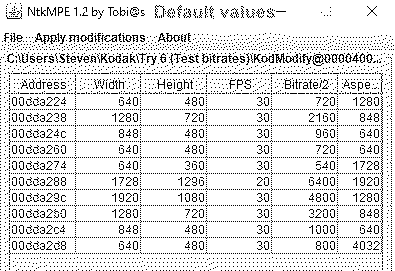
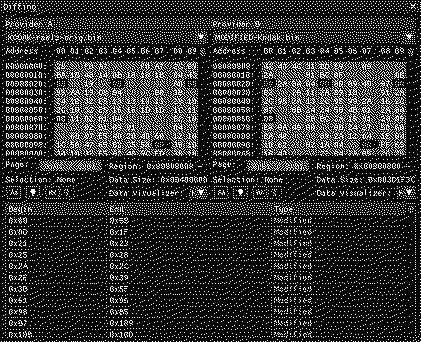
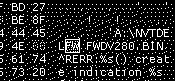
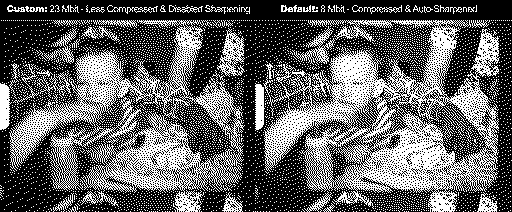
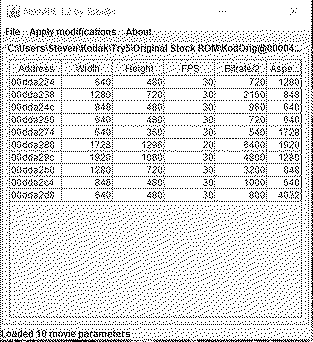
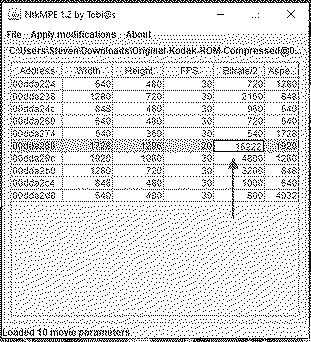
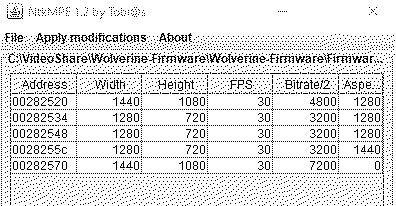
In this thread I'll be discussing my adventures in modifying the Kodak Reels 8mm film digitizer firmware. First I'll explain how I started, my goals, the the results, some tidbits I learned, and how-to do this yourself. This will be a lengthy post, but my process may be helpful to others and I want to refer to this in a future video. [warning] READ ME FIRST [warning] IMPORTANT UPDATE! - December 2024 Kodak had released an official firmware update tool here. (Edit: They removed it!) This extends the max recording time to 40 minutes and gives you a safe "undo" option if you are playing around with modified firmware files. [warning] WARNING: Kodak's OWN firmware MAY RESULT IN PERMANENT, UNFIX-ABLE SCREEN ISSUES ON the latest model! [skull-and-crossbones] There is NO WAY to determine model types besides the serial number. Kodak's firmware is NOT compatible with units with a serial number starting with 'H2324148BK0....', see this post for a solution. Although there are multiple versions of this product (labeled Reels or Reelz, with versions 1.0 or 2.0 listed), there are multiple silent hardware versions! We've identified 3 different firmware variants as of Dec. 2024. I've made a new Digitizer Lookup & Firmware Helper Tool to get started. This uses your device's serial number to determine which firmware file (nicknamed A, B or C) will work for your unit. The modified firmware has also been updated to utilize the longer max 40 min. recording time, you can download those files here, alongside the original FW files for A, B, and C units. Again, see this post for recent models! [warning]PLEASE PROCEED WITH EXTREME CAUTION! [skull-and-crossbones] There is a (now much smaller) risk that you can mess up the colors of your screen or otherwise PERMANENTLY alter your device, but still a risk! 1. THE JOURNEY Over the past few years a few companies have been making devices that help you digitize your 8mm / Super 8 films. 8mm film was how people recorded home movies decades before VHS and digital cameras made it easier. Converting film to tape or digital has always been expensive and tricky.... frame rates, flicker... dirt... sound, etc. Products from Wolverine and Kodak (or whoever has licensed their name), have decent-ish products that sell for around $200-400 USD. These products are made of plastic and aren't the best of course, but they cost thousands less than a professional set up. And for most people, this will successfully let them relive cherished moments. The device moves the film slowly through the device frame by frame. Pausing it to capture an image, then proceeding to advance the film to take another image, and repeating until you stop it. It saves these images as part of an H264 video file, converting it from an image sequence to a video in the process. The Problem These devices often have zero adjustable video settings! This often leads to compressed video artifacts and other blemishes that you have no way of removing. Previously in 2017 some bright minds hacked the Wolverine firmware to allow for better video quality. So when I came across a Kodak Reels (aka Reelz in some territories) for sale on eBay for half the price, I wondered if the same could be done. On paper the Kodak Reels digitizer offers better specs than the Wolverine Pro. It had a better camera sensor and offered a recording resolution higher than 1080p (1728x1296), much nicer than some of the original Wolverine models which were locked to 720p. The higher resolution is great, because you'll likely end up cropping the frame in a video editing program afterwards. Interestingly enough, on the back of the device it says more info about the camera: "8.08 Megapixels (3280 x2464) 1/3" CMOS sensor" My project goals were the following:1) Figure out how to adjust the video settings of the device 2) Figure out how to re-flash the firmware to the device Arrival Upon arrival I immediately put on a Super 8 reel, left the default crop and image settings (crop, tint, exposure, sharpness are all you get to tinker with), and recorded the full reel. It took about 25-30 minutes to record this short Super 8 reel. If played with a projector, it would have been about 3 minutes in length (at 18 fps). The default results weren't bad. In most scenes the image was decently clear, although artificially sharpened. The dynamic color balance or "HDR" that this device apparently employs didn't always have the best results, but it wasn't terrible. Much better than I expected from seeing re-compressed (via YouTube) samples online. However, I thought it could do better. After all, film is fragile (as I'd soon be reminded) and I wanted to archive these films once and never have to go back. Note: While testing a standard 8mm reel it kept repeatedly tearing perfectly fine sprockets. On standard 8 there is an image in this area, sadly this permanently damaged some areas. I found that putting pressure on the take-up reel resolved this about 90% of the time. I'm going to stick to old cartoons until I figure out the quirks to reduce the risk of damaging one-of-a-kind home movies. Finding the firmware All the forum posts about getting the Wolverine firmware were long gone... how was I going to get the Kodak firmware? Their website doesn't provide a download and a version of 1.0 is listed in the device menu. To my knowledge, nobody had ripped open the device yet. So I did that first and took detailed photos. Under the SD card board I found a Novatek NT96658MBG processor, a similar chip to the Wolverine unit. Right next to the processor was a small chip marked MXIC MX25L3236F, looking that up, it appears to be a flash memory chip. Interesting! After consulting with the juicy brain of @Kai Robinson - he confirmed via data sheets that my EPROM programmer's profile for the MX25L3206EM2 should be compatible enough to dump the Kodak's MX25L3236 chip. I just needed a physical adapter to let the chip's 8 legs to plug into my programmer. One was available, the ADP-081, which appeared to be just a straight through piece to adapter the pins. Being impatient, I fashioned my own crude adapter. With my fingers crossed I plugged it in... and the PC EPROM software crashed! Thankfully, on the second try and about 2 minutes later, the EPROM file was dumped, giving me a 4 MB file of the Kodak Reels ROM! Now what? Now that I had the ROM... what could I do with it? Looking back at my goals, I wanted to edit the settings and then figure out how to re-flash the firmware to the device... preferably without an EPROM programmer. After hours of chasing archived forum posts and dead links I learned a lot. As of 2017 there was a thriving community of tinkerers trying to get more out of their dashcams that also used the Novatek CPU. One user, Tobais, had created a website of tools for hacking the Novatek firmware on dashcams. This included a tool for decompressing / recompressing the firmware (which I didn't know I needed to do) and some magic checksum adjustments (NikTool). It also had a great tool to adjust the values for the video settings (NtkMPE) from the decompressed firmware. Someone before me used this knowledge to hack the Wolverine 8mm digitizer, but their website was gone and their email address dead. From what I pieced together, the tools from Tobais didn't work as-is, another user had stepped in to help, but I had no way of contacting them to discover further details. :unsure: Using the tools I found online, I decompressed the original firmware dump with NikTool. It had two partitions, one extracted to be about 19 KB and the other about 14 MB. I downloaded a hex editor, ImHex (Mac/PC), and opened the decompressed firmware file. There was a lot of references to things this device didn't have, like Wi-Fi, but I'm sure other dashcams did. Eventually, I found repeated references to a firmware file "FWDV280.BIN", and "A:/NVTDELFW", so I was 99% sure I had found the firmware file name it needed. Now to see if I could find the video codec / resolution values. Using NtkMPE I selected the dumped decompressed (2nd partition) firmware file and... ta-dah! The tool displayed a list of video resolutions, frame rates and bitrates successfully appeared! [party] I also want to tackle the FPS toggle, as Super 8mm should be set to 16 FPS, not 20... but that may be an oddball enough frame rate to confuse video programs. Either way, that's on my to-do list. Note: When using the original compressed firmware file, the NtkMPE tool produced an error that it didn't find anything to modify. Repacking Firmware I modified the bitrate to another value as a test and saved the changes. Now I had a decompressed file with the modifications I wanted, but I needed to find out how to recompress in a way to trick the device into accepting the Firmware update. NikTool had options to compress and merge firmware partitions, so I thought I had to repack the modified 2nd partition and the unmodified 1st partition into one file. However, this didn't work. After compressing and merging the partitions, the file looked visibly different in the hex editor, which made me realize I wasn't doing something right... or the tools were modifying it too much. Original Firmware Flashing Attempts Knowing I had a backup of the firmware, I realized in a worst-case scenario I could desolder the chip again and reprogram the chip via my EPROM programmer. So I decided to try flashing a modified file to the device. I decided to try and flash the original unmodified firmware to eliminate issues. I renamed the original programmer dumped firmware file to FWDV280.BIN and placed it into the root of the SD card and inserted it into the digitizer. This was the process for updating the Wolverine device, so I assumed it would be similar. When I turned on the device, the startup process now changed! The power light remained on, but the screen stayed black. However, this didn't change for 5 minutes, so I switched it off. It didn't seem to like the firmware file, but upon restarting the device it still worked. However, the presence of the firmware file on the SD card did something. So I was on the right track. Hours later, on a whim, I realized that the 1st partition of the firmware file maybe wasn't needed. Looking at the hex data, it may have been leftovers from the way I dumped the entire memory chip. So I unpacked the original firmware again (only the 2nd partition this time), then recompressed it with with NikTool without making any changes. This resulted in a 4 MB firmware file. I renamed that to FWDV280.BIN, put it on an SD card and gave it a try. I switched on the device and the screen remained black... I felt defeated... until 30 seconds later, the device booted! Did I just successfully flash the firmware?? :oops: It either failed or it didn't, but it did something it didn't do before!! However, inspecting the SD card, it still had the firmware file present. I would assume it would remove the file when done, but perhaps not? Then I recall the "A:\NVTDELFW" string I saw in the code. A:\ seemed to refer to the SD card. So I put an empty directory on the SD card titled "NVTDELFW", as the name suggests, it perhaps tells the Novatek chip to delete the firmware, but from where?? And when?? I turned on the device again, this time with the firmware still on the SD card and the blank folder named NVTDELFW in the root. Now it seemed to flash the firmware for 30 seconds, and booted fine. I shut it off and saw the firmware file was deleted from the SD card! So the NVTDELFW command / folder removes the firmware after flashing. Without it, the firmware file would remain and flash the device on each startup. Neat! (y) Modified Firmware Tests Now that I knew I could flash the firmware, I wanted to modify it and try flashing it. Modifying the firmware could also prove I was flashing the firmware, because with nothing on the screen, I was just assuming it was accepting a new firmware. And without any visible changes in the software, it was tough to confirm my assumpsions. I used the NtkMPE tool to modify the uncompressed firmware file with a different video bitrate. The original value was "6400", I changed this to "9600" and saved the changes, recompressed it, and put it onto the SD card. And... SUCCESS, it flashed! I did a quick capture test of a few seconds, then hastily removed the SD card and shoved it into my Mac. Comparing the details of the video file, it was clear that the bitrate had changed! Awesome! It worked! [party] Now I wondered, how more could I push it? The NtkMPE tool doesn't allow you to enter a value larger than 32700, but the gap between 6400 and 32700 is large. Over the next day I went through the tedious process of modifying the firmware, adjusting the bitrate, recompressing the file, and flashing it to the 8mm digitizer device. If I got too greedy, the device would seemingly capture the film. But the video file wouldn't save on the SD card and trying to use the on-device screen to view the file would make it lock up. Thankfully the device would still reboot and I could easily re-flash the firmware to try again. After many, many attempts and failures, I found entering "15600" gave me a ~20.0 Mb/s bitrate (2.5 MB/s), a healthy improvement from the original "6400" ~8 Mb/s (1 MB/s). This improved the video quality significantly and removed all visible compression artifacts! [face-with-party-horn] (Also a value of 16420 seems to work too!) Further tries with settings of 16000, 16500, 16800, 17222, 18000 and beyond didn't yield any successful results - the device just froze up. But 1200, 14800, 15420, 15600 and 16420 seemed to give me plenty of video file to work with. So I was happy to continue with that. 2. COMPARING THE RESULTS Now let's see the difference these changes made. Let's start with some stills. I'll add video examples later on, but stills tell a good story. After all, the device captures the film as images before creating a video file anyway. Without motion, you may think these image changes are minor, but in motion on a large TV, they really make a difference. A quick aside about evil artificial sharpening: This device by default has some pretty aggressive artificial sharpening. Thankfully, you can adjust it on the device's menu from a scale from +2.0 to -2.0. To an untrained eye, it would seem this sharpening produces decent results, but in motion it creates weird artifacts and over sharpens everything. I've recorded the same film with the sharpening values of 0, -0.5, -1.0, -1.5, and -2.0 and examined the results closely. The setting of 0 results in weird heavy compression artifacts, -0.5 is better but not by a lot, and the -1.0 setting isn't too bad. However, when compared to -1.5 and -2.0, 99% of the major compression artifacts seem to disappear. I personally prefer the setting of -2.0, as I can always use Final Cut Pro to sharpen this stuff later if I wanted. But either -1.5 or -2.0 should be fine. A video comparing the video bit rate and firmware changes Please see the below PNG images for some other examples: On the left is the enhanced / custom firmware with sharpening set to -2.0 and the higher bit rate. On the right is the default firmware with the sharpen setting at -0.5 Notice on the original version how there are compression artifacts around the face, resulting in sharp blocks. Also notice in the comparison how the light on his cheeks differ. In motion this becomes quite distracting and stick out easily. Plus, some frames get superrrrr compressed and look terrible. Especially with the sharpening turned on. This beach scene was captured with the original firmware. Again, it's not terrible... but the artificial sharpening (set to -0.5) combines with the compression to give you plenty of un-naturally sharp edges. Again, in motion this looks worse. Again, the left is the enhanced / custom firmware with sharpening set to -2.0 and the higher bit rate. On the right is the default firmware with the sharpen setting at -0.5 While the sharpening doesn't look too bad from far away, in other scenes it turns the round flames of the candle to odd rectangular blocks. 3. "Team Discovery Channel!" (Additional Learnings) During this ordeal I've learned a lot about what this device likes and what it doesn't. Here is some helpful tidbits that may be handy.
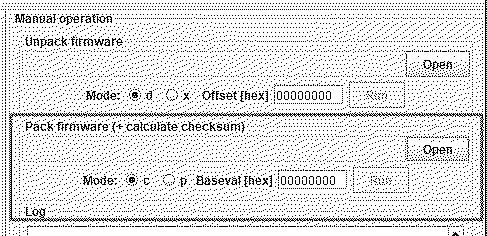
4. HOW TO MODIFY AND FLASH THE FIRMWARE [For Archival Educational Purposes] Skip to section 5 if you just want to use easier pre-made files! WARNING! Follow these instructions at your own risk. Doing these steps may damage your device, your SD card, or void your warranty. You've been warned!! [fire] Currently (12/2024) three models of this Kodak device exist. They are nearly identical except for the LCD used. Use the lookup tool to determine which firmware. Use the lookup tool to help determine which firmware works for your device. You'll need the following: - A Windows or Linux system to run the firmware tools software - An SD card and SD card reader (or USB micro B cable) - The firmware tools software, available here (NtkTool) and here (NtkMPE). - The original unmodified firmware files, use the lookup tool to download them. (Note: Only the decompressed version of the firmware file will be read by the NtkMPE tool) Caution: Never power the device off while the firmware is being flashed. I'm using the cleaned up compressed ROM in this example to save you the step from deleting the extra data from the raw EPROM dump. How to modify the firmware yourself: (skip to Flashing firmware if you just want to use an already modified firmware)
(Using pre-modified or original firmware files)
I'd like to do more testing and see what settings produce the best results. I'd also like to digitize some reels I've had digitized via other methods and compare the quality. I'll likely do a video about this subject. I'm curious if adjusting the resolution or FPS will work too. But I'm so satisfied with these results so far, I had to share them. :)
Liked by Kay K.M.Mods,eyeidea,Eloshaand 15 others |
|
Kai Robinson TinkerDifferent Board President 2023 Worthing, UK -------- Joined: Sep 2, 2021 Posts: 1,322 Likes: 1,313 |
Aug 20, 2023 - #2
That is a spectacular writeup, Steve - loads of detail - glad to be of at least minimal assistance on this!
Liked by Mac84 |
|
Branchus Administrator -------- Joined: Sep 2, 2021 Posts: 237 Likes: 518 |
Aug 20, 2023 - #3
@Mac84, my Wolverine Film2digital MovieMaker 8mm film scanner has a 2304 x 1536 sensor, but only outputs 720p video. I'm guessing that it could do 1080 with the right hack.
Liked by Mac84 |
|
Mac84 Administrator New Jersey, USA -------- Joined: Sep 4, 2021 Posts: 306 Likes: 431 |
Aug 21, 2023 - #4
Of course, I haven't tried these, they may blow yours up etc, good luck!
Liked by ElemenohandBranchus |
|
Branchus Administrator -------- Joined: Sep 2, 2021 Posts: 237 Likes: 518 |
Aug 21, 2023 - #5
However, after capturing a film and comparing it to my old 720p capture, I don't think it improves much. I think I was getting all I was gonna get from this grainy old film at 720p. Liked by Mac84 |
|
Mac84 Administrator New Jersey, USA -------- Joined: Sep 4, 2021 Posts: 306 Likes: 431 |
Aug 22, 2023 - #6
I've made a video showing some of the differences when using the modified firmware with the enhanced video bitrate and various sharpness settings. It can sometimes be hard to see the differences, but in the right scene it can really help. Especially since you'll likely be zooming in or cropping the video later on.
Here's the YouTube video. You can also check out the raw example files here. Liked by davidg5678 |
|
jx0 New Tinkerer -------- Joined: Aug 24, 2023 Posts: 8 Likes: 5 |
Aug 24, 2023 - #7
Thanks for this work.
I can however confirm that Kodak is now shipping a V2.0 firmware, and since I used your mod I am now on V1.0 mod firmware. I'm not really sure what Kodak improved with V2.0. I can confirm the bitrate of my captures with V2.0 firmware was approx 8920 kb/s (1728x1296). Hopefully either Kodak will release the update file or someone will read out the newer version. Liked by Mac84 |
|
Mac84 Administrator New Jersey, USA -------- Joined: Sep 4, 2021 Posts: 306 Likes: 431 |
Aug 24, 2023 - #8
I can't determine if there is a built-in feature to dump the firmware via software. I suppose at least it could be done via the EPROM programmer like I did. I have also discovered I can change the capture resolution using the firmware, this makes a noticeable difference on the viewfinder screen (even though it's a low res). Sadly, all recordings fail. It could be some weird mismatch or just that it doesn't have enough memory or it's an invalid size... without getting some sort of console / eye inside of this thing, I guess we won't know. :unsure: |
|
jx0 New Tinkerer -------- Joined: Aug 24, 2023 Posts: 8 Likes: 5 |
Aug 24, 2023 - #9
Just tried to digitize a film, it failed but I think it did not record file #'s 11 (manual abort) and 12 to the drive, i.e. looks like max 10 files recorded to the card. Will try again later. |
|
Mac84 Administrator New Jersey, USA -------- Joined: Sep 4, 2021 Posts: 306 Likes: 431 |
Aug 24, 2023 - #10
|
|
jx0 New Tinkerer -------- Joined: Aug 24, 2023 Posts: 8 Likes: 5 |
Aug 24, 2023 - #11
Liked by Mac84 |
|
Mac84 Administrator New Jersey, USA -------- Joined: Sep 4, 2021 Posts: 306 Likes: 431 |
Aug 24, 2023 - #12
I'll see if I can get my hands on one of them. Did the menu appear any differently otherwise? If you have any photos feel free to attach them. |
|
jx0 New Tinkerer -------- Joined: Aug 24, 2023 Posts: 8 Likes: 5 |
Aug 24, 2023 - #13
Liked by Mac84 |
|
[email protected]. New Tinkerer -------- Joined: Aug 24, 2023 Posts: 5 Likes: 1 |
Aug 25, 2023 - #14
I applied this to my reelz and the filename got stuck at filename 11 and would not write anythign to the SD card.
So i had to apply the original back to the machine. Did anyone else come across this ? |
|
Mac84 Administrator New Jersey, USA -------- Joined: Sep 4, 2021 Posts: 306 Likes: 431 |
Aug 25, 2023 - #15
I can confirm with my device, there is a chance I mislabeled one. Thankfully reverting to the previous firmware is possible. I had dozens of different versions so my apologies if I got any mixed up. |
|
[email protected]. New Tinkerer -------- Joined: Aug 24, 2023 Posts: 5 Likes: 1 |
Aug 25, 2023 - #16
(The stock original firmware for v1.0 can be found here. The highest bitrate firmware for v1.0, 16240, can be found here) this one is the one i have had problems with, it wont record and causes issues turning off the machine or using it .. Fortunately the default does work :) |
|
Mac84 Administrator New Jersey, USA -------- Joined: Sep 4, 2021 Posts: 306 Likes: 431 |
Aug 25, 2023 - #17
I admit maybe I uploaded some of the wrong ones, the process is convoluted at best and the files all end up the same names. Was your model originally running v1.0 or 2.0? Sorry for the mix up, I'll double check these files tomorrow. |
|
jx0 New Tinkerer -------- Joined: Aug 24, 2023 Posts: 8 Likes: 5 |
Aug 25, 2023 - #18
I can also confirm my (formerly v2.0) unit is trying to write a file over 10 and will not write a video file with the modified firmware from above. I tried moving all the files off the SD card, as well as resetting to factory settings. Despite all this it still remembers the file counter. Have not tried formatting the SD card yet, nor tried reverting to v1.0 original firmware, as time consuming as this is.
|
|
[email protected]. New Tinkerer -------- Joined: Aug 24, 2023 Posts: 5 Likes: 1 |
Aug 25, 2023 - #19
|
|
Mac84 Administrator New Jersey, USA -------- Joined: Sep 4, 2021 Posts: 306 Likes: 431 |
Aug 25, 2023 - #20
For the time being, anyone with a 2.0 software update may want to hold off. I'm unsure what hardware / software differences those devices may have. |
| Page 1 of 48 | Next > | Last >> |
| Home | Forums | What's New | Search | Bookmarks | RSS | Original | Settings |
| XenForo Retro Proxy by TinkerDifferent.com |